Service Accounts
Service accounts offer a protected and standardized method of authenticating machine-to-machine communication between services protected by Pomerium.
Pomerium Enterprise
Service Accounts are a Pomerium Enterprise and Pomerium Zero feature. The steps below show you how to create and use a Service Account in the Enterprise Console or in Pomerium Zero.
Add a Service Account in the Enterprise Console
Before you begin, confirm you are in the correct Namespace. You can only use a service account in the Namespace it was created in, including its children Namespaces.
Add a service account
-
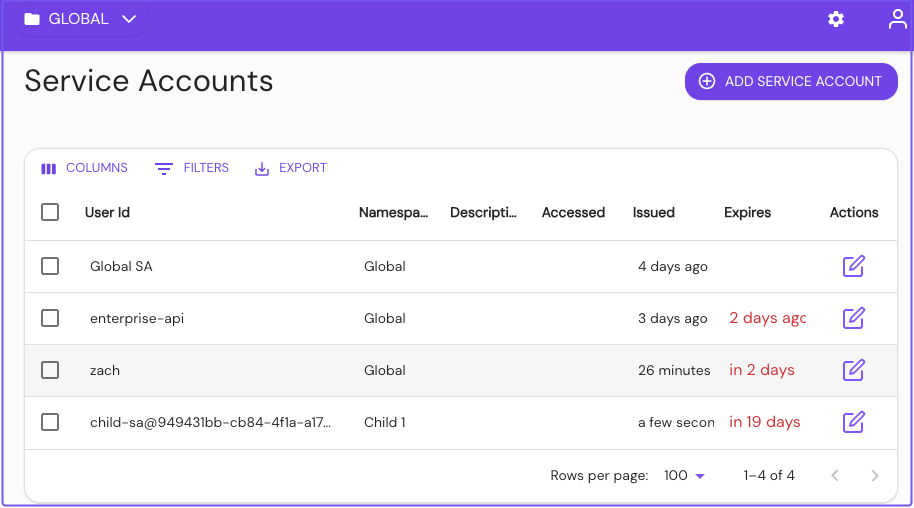
In the Service Accounts dashboard, select + ADD SERVICE ACCOUNT:
-
Give the service account a unique User ID, or select an existing user to impersonate. Consider referencing the Namespace you're creating it under, for easier reference later. Optionally, set an expiration date.
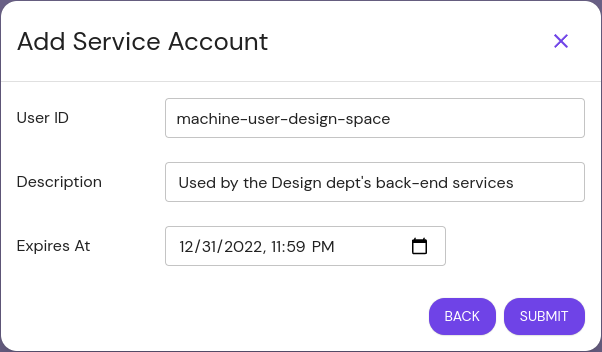
The user ID set here corresponds to the
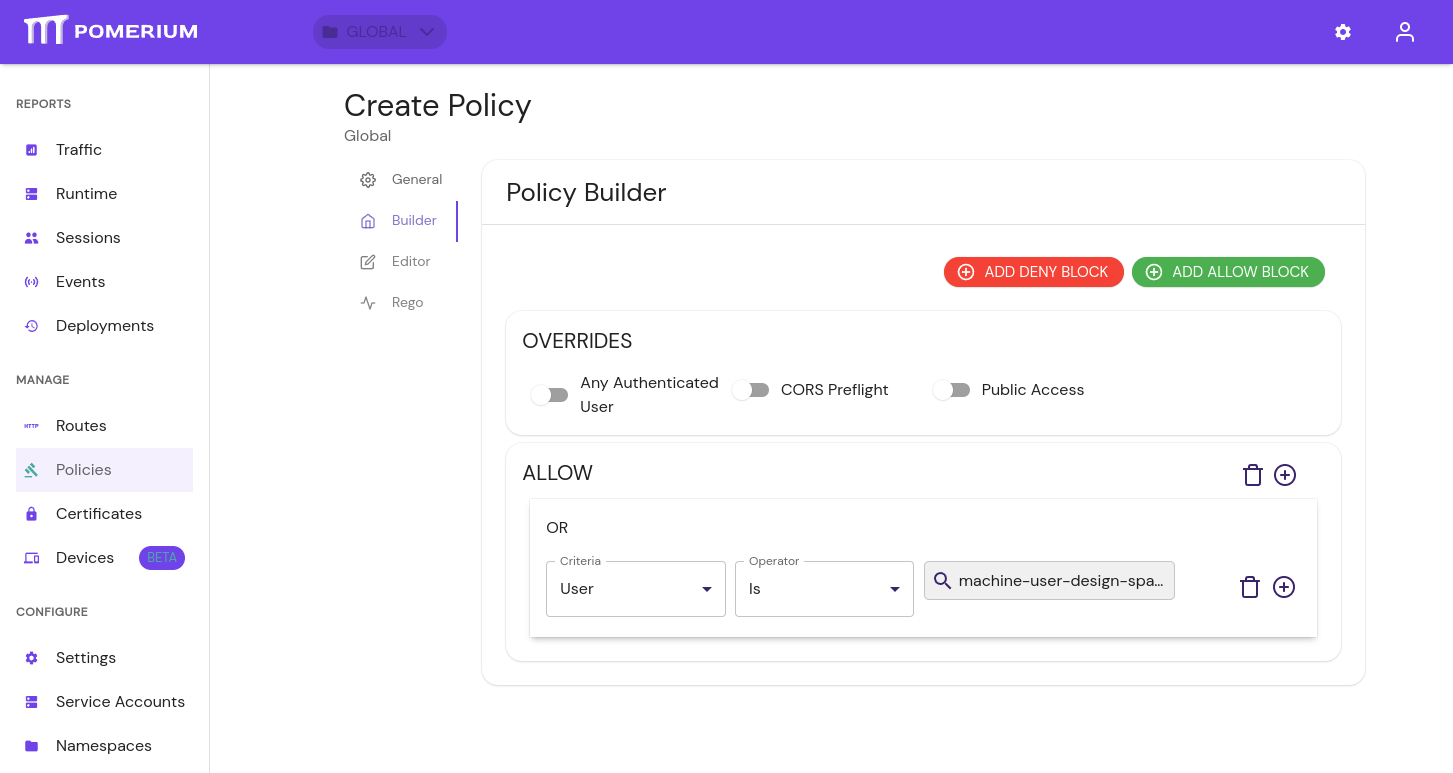
Usercriteria when editing a policy.infoService accounts can be unique and exist only for Pomerium, or impersonate directory users from your identity provider.
See the following pages for more information:
Save the service account JWT
-
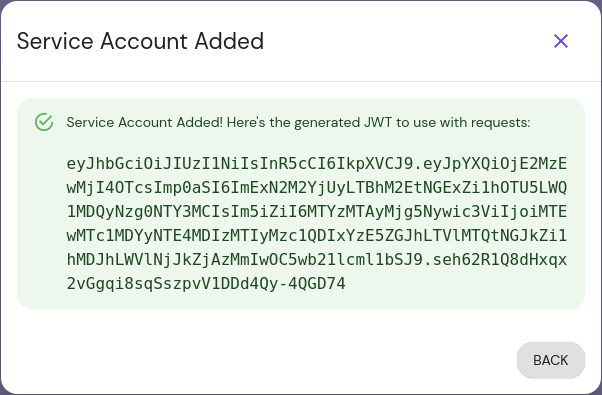
After you select Submit, the modal presents the JSON web token (JWT) to authenticate the service account. Save it somewhere secure, as you won't be able to view it again:
-
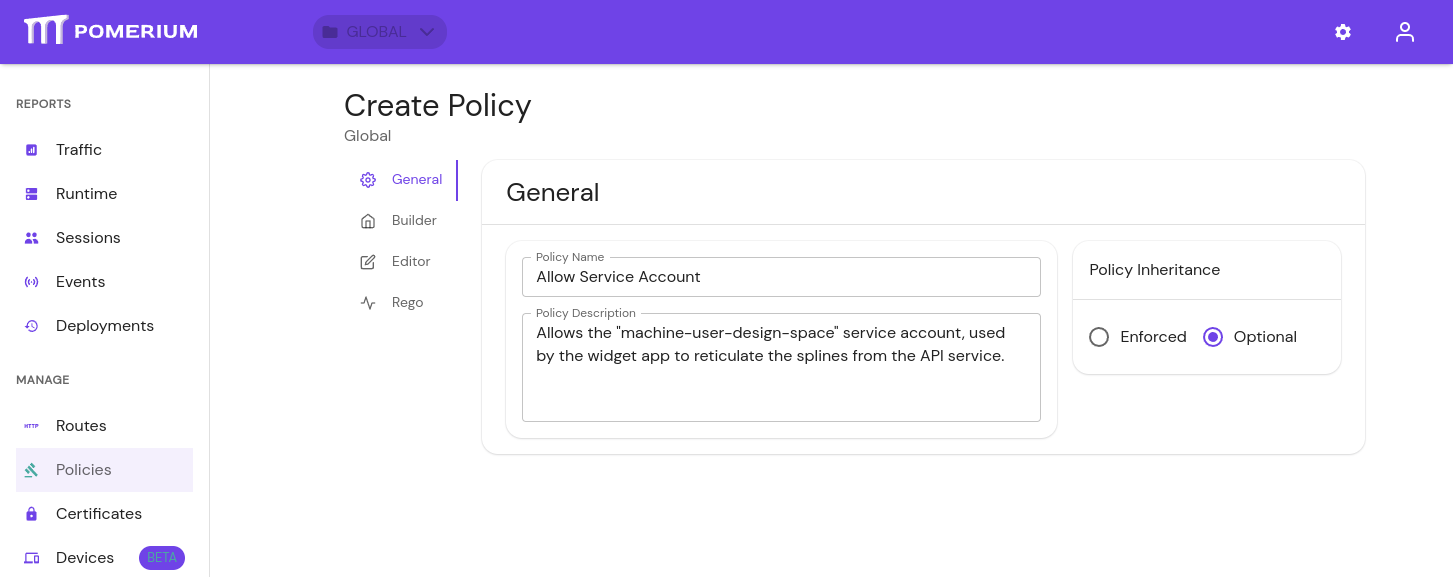
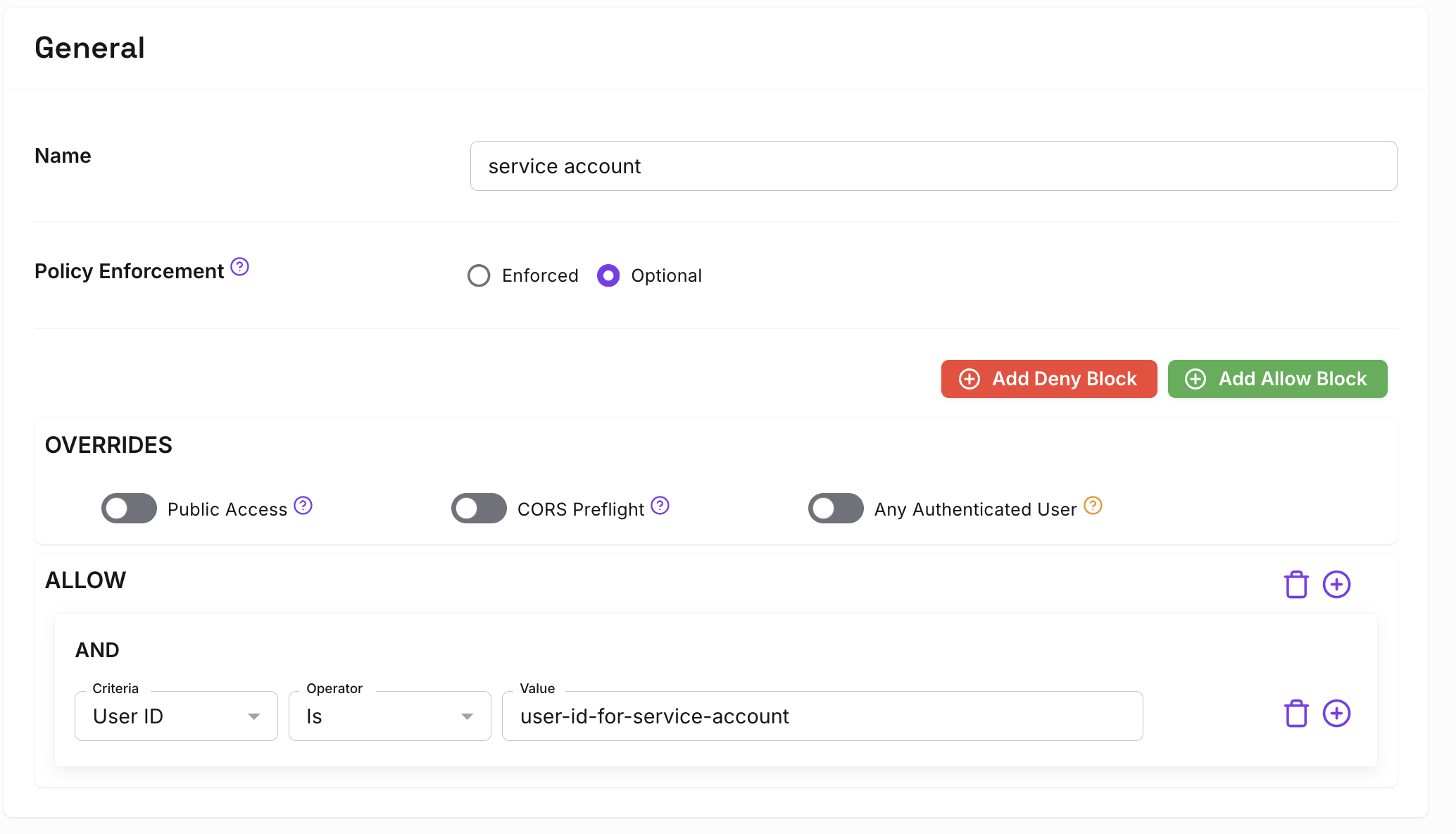
Edit or create policies to give the service account access to the internal service:
Add a Service Account in Pomerium Zero
Add a Service Account
-
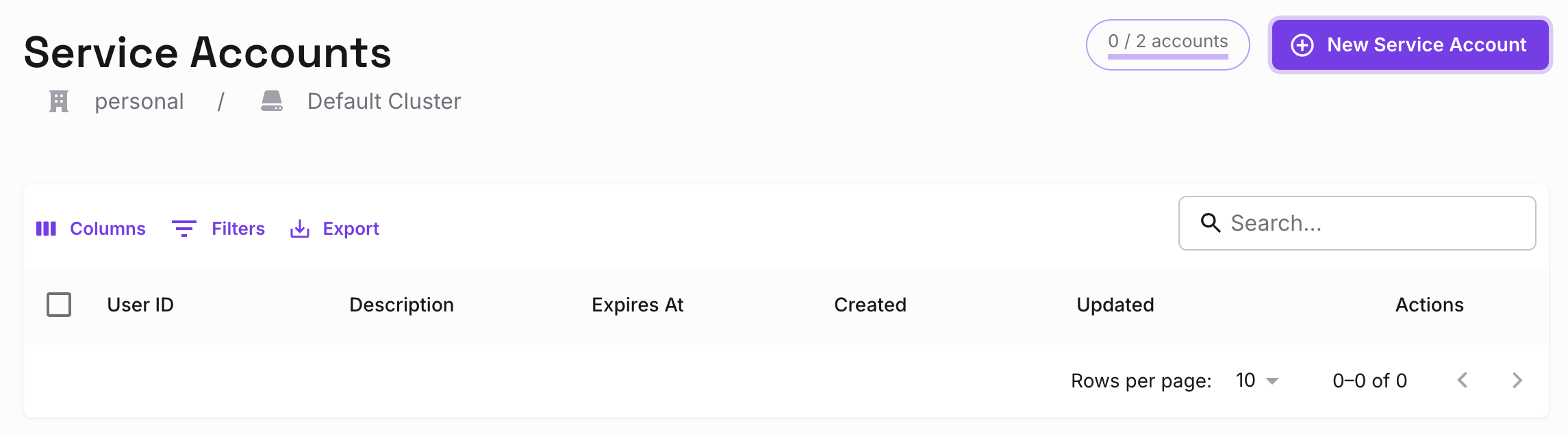
In the Service Accounts dashboard, select + New Service Account:
-
Give the service account a unique User ID, or use the ID of an existing user. Optionally, set an expiration date. The user ID set here corresponds to the
Usercriteria when editing a policy.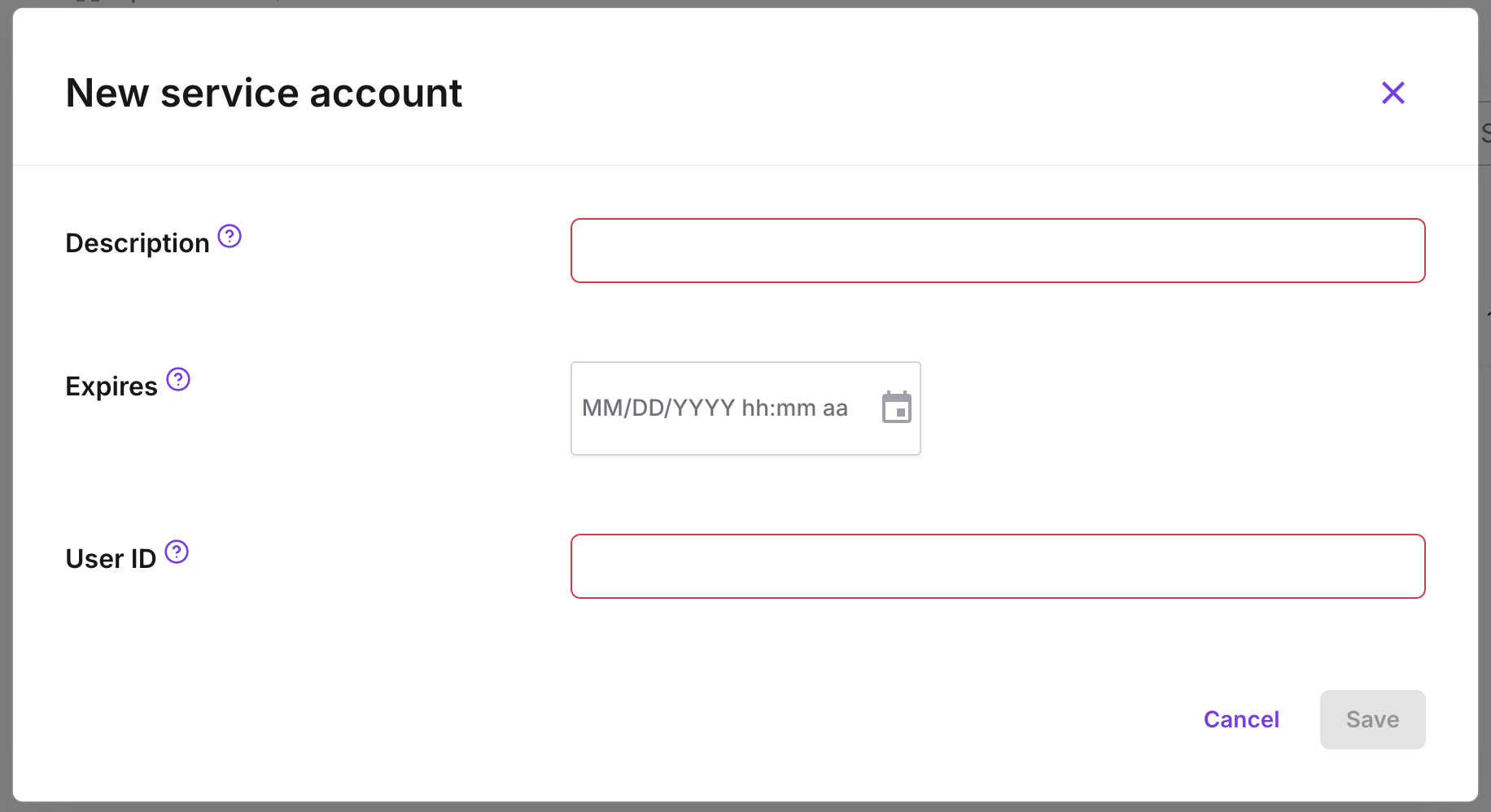
Save the Service Account JWT
-
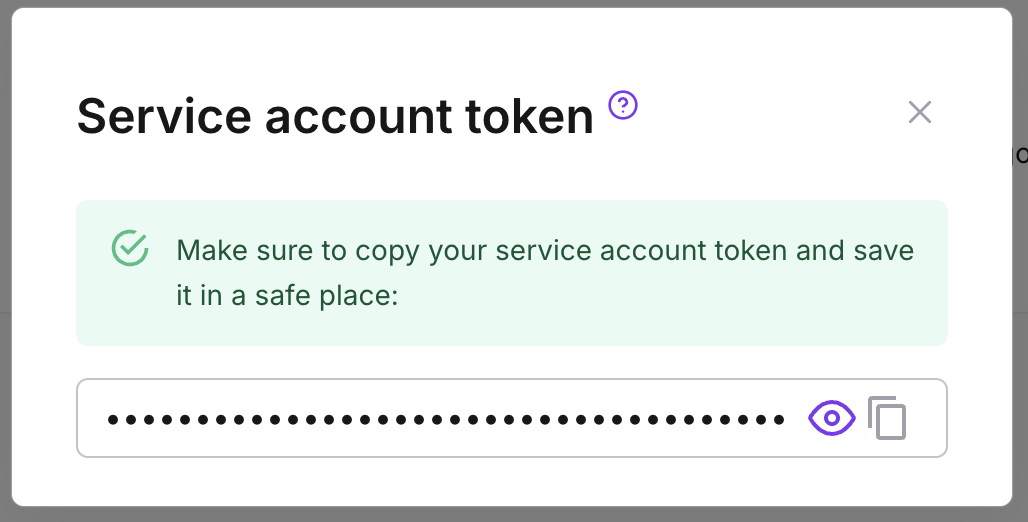
After you click Save, the modal presents the JSON web token (JWT) to authenticate the service account. Save it somewhere secure, as you won't be able to view it again:
-
Edit or create policies to give the service account access to the internal service:
Authenticate with the Service Account JWT
Pomerium provides three methods to authenticate with a Service Account JWT:
Authorization: Bearer Pomerium-${pomerium_jwt}X-Pomerium-Authorization: ${pomerium_jwt}Authorization: Pomerium ${pomerium_jwt}
For example, the curl command below demonstrates how to send an authenticated request using the bearer token method:
curl -i -H "Accept: application/json" -H "Authorization: Bearer Pomerium-${pomerium_jwt}"
https://verify.localhost.pomerium.io
If the request is valid, the response would look similar to the example below:
HTTP/2 200
accept-ranges: bytes
cache-control: no-cache
content-type: text/html; charset=utf-8
etag: "75df42fffe5e9fdf2c13f64963d04e8115fb06f8e9c4a97db3c9d7394ab6be38"
x-cloud-trace-context: 97f79dda2b32e0618d7e53cee2c85bcb;o=1
date: Mon, 04 Mar 2024 21:56:24 GMT
server: envoy
content-length: 1191
x-envoy-upstream-service-time: 206
x-frame-options: SAMEORIGIN
x-xss-protection: 1; mode=block
x-request-id: bcd0bb52-25fb-4858-8da0-a552fc9b2859